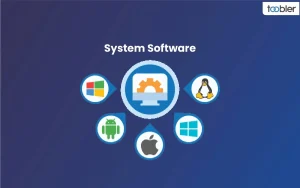


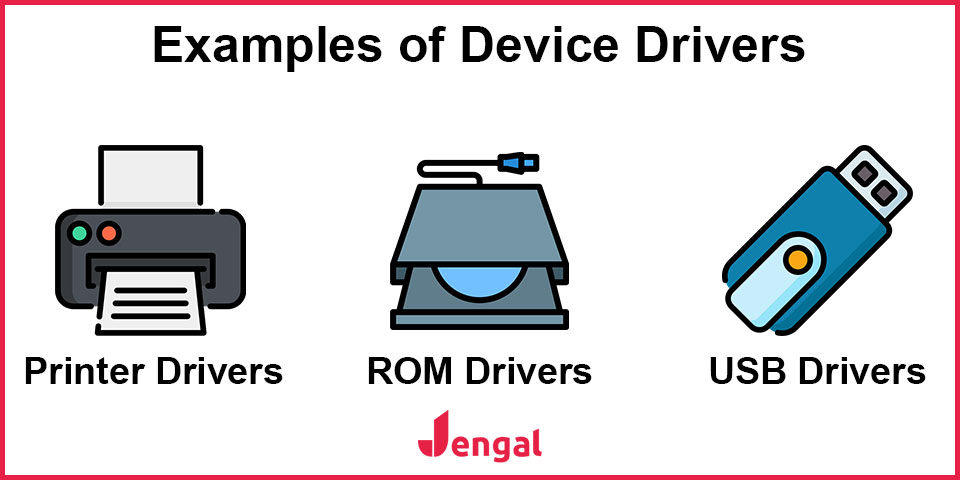
Device drivers are software programs that enable your operating system (like Windows, macOS, or Linux) to communicate with hardware devices. They act as a translator between the general instructions of the OS and the specific commands a piece of hardware needs to function, allowing devices like printers, graphics cards, and network adapters to work correctly. Without drivers, hardware would be unable to communicate with the rest of the computer, rendering it useless or with limited functionality.
How they work:
- Translation: A driver translates commands from the operating system into a format the specific hardware understands. For example, it tells a printer what to print and how to format the paper.
- Communication bridge: Drivers act as an intermediary between the operating system and the hardware, managing the flow of data and requests between them.
- Essential for functionality: Drivers are essential for proper operation. A missing or corrupted driver can cause a device to not work at all or to only have partial functionality. For example, a high-end graphics card might work as a basic display, but its advanced features won’t be available without the correct driver.
Key functions and characteristics:
- Device-specific: Each driver is written for a specific type of hardware (like a graphics card from AMD vs. Nvidia) and operating system (a driver for Windows won’t work on macOS).
- Part of the system: Some drivers are generic and are built into the operating system, while others are specific and must be installed manually by the user.
- Types of drivers: There are different types, such as function drivers that communicate directly with the device and filter drivers that perform auxiliary processing on the requests before passing them on.
- Maintenance: Drivers need to be updated periodically to fix bugs, improve performance, or ensure compatibility with new software. You can usually update them through the operating system’s built-in tools, such as Device Manager in Windows.
What is a device driver?
A device driver is a specialized software program that allows a computer’s operating system to communicate with hardware. It acts as a translator, converting general commands from the operating system into specific instructions that a hardware device, like a printer or graphics card, can understand and execute. Without a device driver, the operating system would not know how to properly control or use a particular piece of hardware.
Acts as a translator:
It translates commands from the operating system into a language the hardware understands, and translates data from the hardware back into a format the OS can use.
Enables hardware function:
It is essential for making hardware work correctly, from internal components like graphics cards to external peripherals like printers and keyboards.
Provides abstraction:
It allows programmers to write applications that can interact with hardware without needing to know the specific details of each device.
Manages communication:
It is the conduit that facilitates the seamless interaction and data transmission between software and hardware.
What is an example of a driver device?
Examples of device drivers include graphics drivers for your video card, network drivers for your Wi-Fi or Ethernet, and audio drivers for your sound card. Other examples are printer drivers, USB drivers, and drivers for input devices like keyboards and mice.
Input and output devices:
- Graphics drivers: Enable the operating system to communicate with the graphics card.
- Audio drivers: Allow the operating system to interact with sound hardware.
- Printer drivers: Translate data from an application into a format the printer can understand.
- Keyboard and mouse drivers: Help the computer interpret key presses and mouse movements.
- Camera drivers: Allow the operating system to control and receive data from webcams and other cameras.
Connectivity and storage:
- Network drivers: Manage communication between the operating system and network hardware, such as Wi-Fi adapters or Ethernet cards.
- USB drivers: Enable communication with devices connected via a USB port.
- Storage device drivers: Facilitate access to and control of storage devices like hard drives, SSDs, and USB drives.
System and motherboard:
- Motherboard drivers: Manage the interaction with the motherboard’s components.
- Chipset drivers: Provide the operating system with information about the motherboard’s chipset.
Why are device drivers used?

The purpose of a device driver is to act as a translator between a computer’s operating system and its hardware. It allows the OS to communicate with and control specific devices, such as a printer or graphics card, by converting generic, high-level commands into the specific, low-level instructions the hardware understands. This abstraction means software developers don’t need to write code for every possible hardware variation.
- Enables communication: Drivers are essential for interaction between the OS and hardware components like keyboards, mice, printers, and graphics cards.
- Provides abstraction: By acting as an intermediary, a driver hides the specific technical details of a hardware device from the operating system and applications.
- Translates commands: It converts high-level commands from the OS (e.g., “print a document”) into low-level instructions that the hardware can execute.
- Simplifies development: Developers can create applications that work with hardware without needing to know the exact specifications of every device, as the driver handles the hardware-specific details.
How many types of device drivers are there?
For instance, the most natural distinction includes two separate types: generic and specific device drivers. In such a case, the former are a part of the OS and do not require any additional input from the user to work; the latter are made for individual devices and usually need to be installed manually.
How do I check device drivers?
Open Device Manager from Start menu or search in Start menu. Expand the respective component driver to be checked, right-click the driver, then select Properties.
How do I install a device driver?
To install a device driver, download the correct driver file from the manufacturer’s website, then either run the downloaded installer or manually install it through Device Manager in Windows. After installation, a computer restart is often necessary to complete the process.
Method 1: Using the downloaded installer:
- Download the driver: Go to the device manufacturer’s website, find the support or downloads section, and download the driver that is specific to your device and operating system.
- Run the installer: If the downloaded file is an executable (e.g., a
.exefile), double-click it to run the installation and follow the on-screen instructions. - Extract the files: If the download is a compressed file (like a
.zip), extract the contents to a folder on your computer. You can then run the installer from the extracted files or proceed with the manual installation method.
Method 2: Manual installation via Device Manager:
- Open Device Manager: Right-click the Start button and select “Device Manager”.
- Locate your device: Find the device you want to update in the list, expand the category, and right-click the specific device.
- Update the driver: Select “Update driver”.
- Choose to browse: Select “Browse my computer for drivers”.
- Select the driver file: Click “Browse” to navigate to the folder where you saved the driver files and select the driver file (often a
.inffile). Ensure “include subfolders” is checked if available. - Install the driver: Click “Next” to start the installation.
- Restart your computer: After the installation is complete, restart your computer to finish the process.
Method 3: Using Windows Update:
- Open Windows Update: Go to Settings > Windows Update.
- Check for updates: Click “Check for updates”.
- Find optional updates: Select “View optional updates” and check for any available driver updates.
- Download and install: Select the drivers you want to install and click “Download and install”.
So, kindly go through this above post before you deal with drivers.