

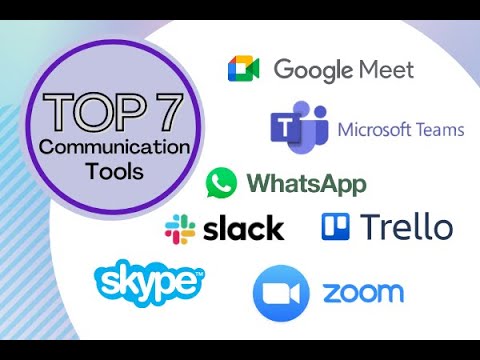
Zoom and Microsoft Teams are video conferencing and team collaboration platforms, while WhatsApp is a messaging app that has been adding features like call scheduling to compete with video conferencing tools. Teams is deeply integrated with other Microsoft products, making it a comprehensive business communication suite, while Zoom is known for its simple interface and large number of third-party integrations. WhatsApp’s recent updates enable scheduled calls, making it more suitable for direct, scheduled communication and small group calls, but it is generally used for more personal and instant messaging.
Zoom:
- Best for: Large-scale meetings and webinars due to its advanced features like webinars for thousands of attendees (with paid plans) and extensive third-party integrations.
- Key features:
- Video conferencing and webinars
- User-friendly interface
- Over 1,000 third-party integrations
- Meeting recordings and chat
Microsoft Teams:
- Best for: Businesses already invested in the Microsoft ecosystem, as it integrates tightly with other Office 365 tools like Word, Excel, and SharePoint.
- Key features:
- Comprehensive communication suite with chat, meetings, and file storage
- High participant limits in meetings (up to 1,000 interactive participants and 10,000 viewers in webinar-style events with certain subscriptions)
- Integrated with Microsoft Office apps
- Secure, team-focused environment
WhatsApp:
- Best for: Instant messaging, quick group chats, and more personal communication, though it now supports scheduled calls.
- Key features:
- Instant messaging and voice/video calls
- Scheduled calls
- Group calls with up to 32 active participants
- End-to-end encrypted messaging
- Business messaging features like automated flows and integrations with other platforms
How to choose:
- For complex team collaboration and integrations: Choose Microsoft Teams if your organization uses Microsoft 365, or Zoom if you need a wider range of third-party integrations and a simple, intuitive video conferencing platform.
- For quick, informal communication and small group calls: Use WhatsApp for one-on-one chats or informal team chats, and for its new scheduled call feature, which is great for setting up quick, direct meetings.
- For large broadcasts: Use Zoom or Teams for large-scale events like webinars, as they are designed for a much larger audience than WhatsApp.
Can 3 people do video calls on WhatsApp?
At a time 32 people can be active on a video call at one time. Make sure you and your contacts have strong internet connections when making or receiving group video calls. The quality of the video call will depend on the contact with the weakest connection. You can’t remove a contact during a group video call.
Is WhatsApp good for team communication?
When you’re continuously communicating about changing schedules, shifts, and workloads, WhatsApp is useful because it’s easy to create group chats or message team members one-on-one. Plus, messages on WhatsApp are time-stamped, which can help you resolve workplace disputes and clarify past conversations.
What is the new feature of WhatsApp meeting?
The person who creates the call link will also be notified when someone joins. Interactive Controls: During a call, users can now “raise a hand” to signal they want to speak without interrupting the conversation. Live reactions have also been added, allowing participants to respond without speaking.
Can you use Zoom with WhatsApp?
Account owners and admins can seamlessly add and connect WhatsApp numbers, complete basic setup, and onboard WhatsApp within the Zoom Contact Center client interface.
What is the 24 hour rule for WhatsApp business?
You may reply to a user message without use of a Message Template as long as it’s within 24 hours of the last user message. Conversations initiated by users open once the first business reply message is delivered. Outside the 24-hour customer service window, you may only send messages via approved Message Templates.
How can I know if someone is monitoring my WhatsApp?
You can check for WhatsApp monitoring by going to Linked devices in your WhatsApp settings to see any active sessions you don’t recognize. Other signs include unusual phone behavior like rapid battery drain, phone overheating, or strange background noise.
Check linked devices:
- Open WhatsApp on your phone.
- Tap the three vertical dots in the top-right corner (Android) or tap “Settings” (iOS).
- Select Linked devices.
- Review the list of connected devices. If you see any you don’t recognize, tap on it and select Log out to disconnect it immediately.
Look for other signs of monitoring:
- Rapid battery drain: A spy app running in the background can quickly drain your battery, even when you’re not using your phone heavily.
- Phone overheating: Excessive use of RAM by a background app can cause your phone to heat up more than usual.
- Slow performance: Your phone might feel sluggish, or apps may run slowly due to the extra load from a spy app.
- Unusual activity: You might see strange messages in your chats, receive login verification codes you didn’t request, or notice that messages are being read without you opening them.
- Mysterious calls or texts: Be cautious of strange messages or links from unknown contacts, as they could be an attempt to gain access.
How to protect your account:
- Enable two-step verification: This adds a PIN requirement to register your phone number on WhatsApp, adding an extra layer of security.
- Log out of WhatsApp Web: Always log out of WhatsApp Web on shared or public computers.
- Avoid sharing your phone: Be careful about who you let use your phone, as they could scan a QR code to link their device to your account.
- Delete suspicious apps: Check your phone’s settings for unrecognized apps and uninstall them.
Is WhatsApp video call risky?
WhatsApp calls and video calls are secure from a technical standpoint. But, as with sending photos, you need to consider the security of your device and the recipient’s device. Don’t get complacent. If either or both devices are malware-infected, your audio calls could be exposed.
Can police see my WhatsApp video call?
No, the content of a WhatsApp video call cannot be intercepted by the police because it is protected by end-to-end encryption. However, the police can obtain metadata such as the phone numbers of the participants, the call’s duration, and timestamps through a legal request to WhatsApp. They may also be able to use a video recording from one of the parties as evidence or track the location using the IP address if a user clicks a suspicious link during the call.
What the police cannot see?
- Call content: The actual video and audio of the call are end-to-end encrypted, meaning only the two people on the call can access the content.
- Call recordings: WhatsApp does not store or have access to recordings of calls, so they cannot provide them to law enforcement.
What the police can get?
- Metadata: Police can request metadata like the phone numbers, call times, and durations from WhatsApp through proper legal channels.
- External evidence: If a user or their device was being recorded and the video was saved, police could potentially use that recording as evidence, as seen in a case where a robbery victim’s fiance recorded a video call with their face captured during the incident.
- IP address: If a user clicks a suspicious link during a call, their IP address might be exposed, which can provide information about their general location (city/country) but not a precise location.
How the police investigate:
- Police use legal means to request data from WhatsApp.
- They can use traditional detective work and forensic analysis on recordings or devices.
- They can use analytics tools to gather information from social media and other online activities to build a case.
This post is entirely informative. Educate yourself before using Zoom and WhatsApp.