
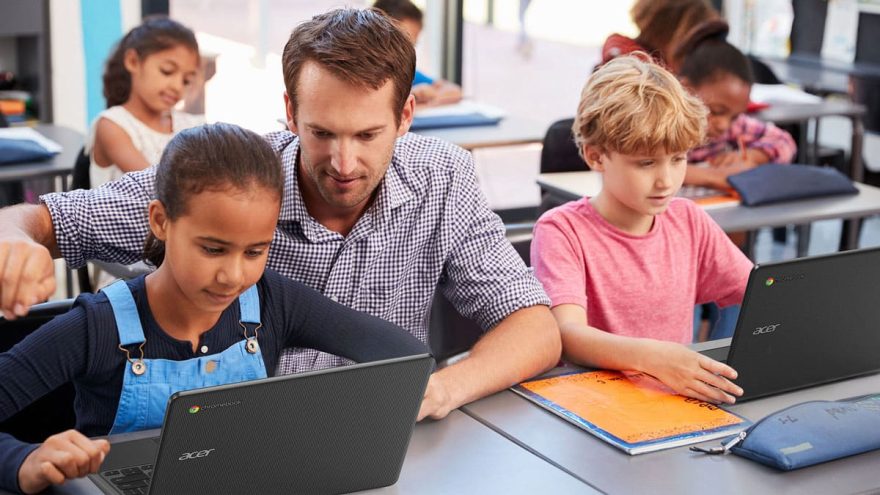
Chrome OS offers a fast, secure, and budget-friendly computing experience, primarily designed for cloud-based tasks. Key advantages include rapid boot times, automatic background updates, high-level security with sandboxing, long battery life, and seamless integration with Google Workspace and Android apps, making it ideal for students and light, portable use.
Key Advantages of Chrome OS:
- Security & Stability: Chrome OS uses “sandboxing,” where each app/webpage runs independently. If one tab crashes or gets a virus, the rest of the system remains safe and unaffected. It also features verified boot, ensuring the system isn’t compromised on startup.
ChromeOS is recognized for its high security and stability, featuring a “secure by design” approach with automatic updates, sandboxing, and verified boot to prevent malware and tampering. It operates a read-only OS, meaning executable files cannot run, which helps prevent ransomware. As of 2025, there have been no reported successful ransomware attacks.
Key Security Features:
- Verified Boot: Upon startup, ChromeOS checks its own integrity. If corrupted, it automatically reverts to a clean, safe state.
- Sandboxing: Each web page and application runs in its own restricted environment, preventing a malicious website from affecting the rest of the device.
- Automatic Updates: Updates occur in the background, ensuring the device always has the latest security patches without user intervention.
- Data Encryption: User data is encrypted at rest and in transit.
- Zero Trust Architecture: Designed for modern security, assuming threats can be internal or external, requiring continuous verification.
Stability & Performance:
- Read-Only OS: The system files are separated from user files, preventing accidental modifications that can cause instability.
- LTS Channel: ChromeOS offers a Long-term Support (LTS) channel, prioritizing stability for enterprise and education, allowing for fewer, more stable updates.
- Fast Boot: The system is engineered to start quickly, enhancing usability and reducing the disruption caused by updates.
Potential Considerations:
- Dependent on Internet: While it works offline, ChromeOS is designed to work best when connected to the cloud.
- App Limitations: While Android app support is robust, it cannot run native Windows or traditional desktop software natively, though it can use virtualization.
ChromeOS provides a high-security, low-maintenance environment that reduces the risk of data theft and malware significantly compared to traditional operating systems.
- Speed & Performance: Devices boot up in seconds and remain fast over time due to the lightweight nature of the operating system.
ChromeOS is designed for high speed, responsiveness, and efficiency, typically booting in seconds and running smoothly on modest hardware. It maximizes performance through lightweight architecture, cloud integration, and native browser optimizations like memory management. It excels in web-centric tasks, staying cool, and offering quick, secure performance.
Key Performance Aspects:
- Speed & Boot Time: Certified devices offer sub-8-second cold boot-to-browser readiness.
- Responsiveness: The system provides a fluid experience for web browsing and web apps.
- Resource Management: Features like Memory Saver free up resources from inactive tabs to speed up active ones.
- Battery Life: Chrome OS is designed for efficiency, often allowing longer battery life compared to other operating systems.
- Fluidity: The OS provides smooth graphics for browsing and web apps.
Performance Optimization Tips:
- Memory Saver: Turn on Memory Saver in Chrome settings to improve speed.
- Update Regularly: Ensure Chrome OS is updated to the latest version.
- Extension Management: Remove or disable unnecessary extensions to free up resources.
- Clear Cache: Periodically clear browser data, including cookies and cached images.
- Storage Cleanup: Delete files in the Downloads folder and empty the trash.
- Experimental Features: Use
chrome://flagsto enable features like GPU rasterization for better graphics performance.
Performance Considerations:
- Hardware Dependence: While efficient, performance can still vary based on the processor and RAM of the specific Chromebook.
- Offline Limitations: While improving, performance can feel restricted compared to full desktop operating systems when working offline.
- Background Processes: Too many apps or extensions can still slow down the device.
How to Boost Performance
- Update Device: Check for updates to ensure optimal performance.
- Manage Extensions: Manage and remove extensions in the browser.
- Check Performance Settings: Enable Memory/Energy Saver in Chrome.
- Enable Parallel Downloading: Search
chrome://flagsfor “parallel downloading” to speed up file downloads.
- Cost-Effectiveness: Chromebooks are generally much cheaper than Windows laptops or MacBooks, offering great value for money.
ChromeOS is highly cost-effective, offering ~44% lower operating costs and up to 245% ROI over three years compared to traditional devices, largely driven by cheaper hardware ($200–$500 range), reduced IT management, and no antivirus software costs. Organizations can save over $500 per device, and ChromeOS Flex can extend the lifespan of older hardware.
Key Cost-Effectiveness Drivers:
- Lower Initial Hardware Costs: Chromebooks typically range from $200–$500, significantly lower than the $1,100+ for many typical Windows or Mac units.
- Reduced Total Cost of Ownership (TCO): Organizations reported saving roughly $300 in hardware costs and $200 in software licenses/management per device.
- Simplified IT Management: The Google Admin console allows for centralized management and 90% reduced security vulnerabilities, slashing IT labor costs.
- Reduced Licensing Fees: No need for third-party antivirus software or expensive OS licenses.
- Extended Device Lifespan: ChromeOS devices receive 10 years of updates, and ChromeOS Flex can be installed for free to rejuvenate old PCs, reducing the need for new hardware purchases.
- Productivity Gains: Faster boot times and minimal updates mean less downtime, resulting in significant time savings for employees and students.
Key Economic Impacts:
- 3-Year Savings: Roughly $3,901 in savings per device.
- High ROI: Average of 245%.
- Security Savings: $1.2 million benefit from reduced security risks.
Considerations:
While highly cost-effective, some sources note potential “hidden costs” related to needing specific, cloud-first workflows, and some cheaper models might have shorter, lower-performance lifespans compared to higher-end, traditional laptops.
- Cloud-First & Seamless Backup: Because data is stored in the cloud (Google Drive), you don’t lose data if the device is lost or broken.
ChromeOS is designed as a cloud-first, stateless operating system, which means it inherently prioritizes saving data to the cloud (Google Drive) rather than locally, facilitating a seamless backup experience where files, settings, and apps are synchronized with your Google Account.
Here is how to achieve a seamless, cloud-first backup on ChromeOS:
1. Automatic Cloud Sync (Chrome Sync):
The most seamless way to back up your Chromebook is by enabling Chrome Sync, which automatically backs up browser data and device settings to your Google Account.
- Settings: Go to Settings > You and Google > Sync and Google services > Manage what you sync.
- What is backed up: Bookmarks, history, passwords, extensions, and Chrome settings.
- System Settings: In settings, ensure sync is enabled for Wi-Fi networks, wallpapers, and apps to sync across devices.
2. Cloud-First File Storage (Google Drive)
Files stored in the “My Files” > “Downloads” folder are local and NOT backed up automatically.
- Best Practice: Save all documents, images, and files directly into the Google Drive folder within the Files app.
- Automatic Backup: Any file placed in Google Drive is automatically synced to the cloud.
3. Backup Before Powerwash (Manual Cloud Backup)
If you need to perform a “Powerwash” (factory reset) or move to a new device, you must ensure local files are migrated to the cloud.
- Open the Files app.
- Select all files in the “Downloads” folder.
- Drag and drop them into the Google Drive section.
4. Linux and Android Data:
- Linux (Crostini): If you use Linux apps, open Settings > Advanced > Developers > Linux development environment > Backup and restore. This creates a backup file that should be saved to Google Drive.
- Android Apps: Most Android app data is backed up automatically via Google Play Services, but some apps may require manual backup within the app itself.
5. Enterprise/School Device Management:
For businesses using Chromebooks, administrators can configure policies to automatically migrate local user files to Google Drive, ensuring all data remains in the cloud. Google Help
By using Google Drive as the primary storage location and enabling Chrome Sync, you ensure that if a Powerwash is necessary, you can log in again and have your desktop, settings, and files restored immediately.
- How To Back Up Your Chromebook Before Powerwashing4 Jul 2023 — in this video Timmy’s going to show you how to back up everything on your Chromebook before you powerwash or factory reset it.
- ChromeOS – The Cloud-First, Secure OS for your BusinessDiscover ChromeOS, the secure cloud-first operating system that keeps your business moving and provides employees with a modern ex…
- How to backup your Chromebook files before a Powerwash27 Jul 2022 — device first thing you need to do is to look at what sort of files. you might need to back up now in an ideal. world we would save…
- Easy Maintenance: Updates are automatic and occur in the background, so you always have the latest features and security patches without manual intervention.
Maintaining a Chromebook is straightforward, focusing on keeping the system updated, clearing cache, and removing unused apps to ensure optimal performance. Key maintenance steps include restarting weekly, updating ChromeOS in settings, managing storage by deleting local files or moving them to Google Drive, and cleaning the screen/keyboard with soft cloths or compressed air.
Key Maintenance & Performance Tips:
- Update Regularly: Go to Settings > About Chrome OS to check for updates, ensuring security and new features.
- Clear Cache & Data: Navigate to Settings > Privacy and security > Clear browsing data to remove unnecessary files and free up space.
- Manage Storage: Use the Files app to remove files in “Downloads” or move them to Google Drive.
- Remove Unused Extensions/Apps: Regularly check for and remove unused extensions in
chrome://extensionsand Android apps in settings to improve speed. - Restart Weekly: Periodically powering off (not just closing the lid) refreshes system resources.
- Physical Cleaning: Use a microfibre cloth for the screen and compressed air for keyboard debris.
Preventive Care & Troubleshooting:
- Battery Care: Keep the charge between 50% and fully charged where possible, and avoid leaving it plugged in constantly.
- Fixing Lags: If performance is poor, clear browser cache first.
- Powerwash: If issues persist, use the “Powerwash” feature in Settings to factory reset the device.
- Hardware Issues: Clean ports and use external devices (mouse/keyboard) to troubleshoot if necessary.
- Battery Life: Chromebooks are known for their efficiency, often offering long-lasting, all-day battery life.
Chrome OS devices generally offer excellent battery life, typically ranging from 6–13+ hours of active use, often designed to last a full workday on a single charge. Actual battery life varies significantly based on screen brightness (30-50% brightness yields best results), open tabs, and active applications.
Key Battery Life Insights for Chrome OS:
- Average Performance: Most modern Chromebooks comfortably provide 10+ hours of web browsing/mixed use.
- High-End Efficiency: Some devices, such as those with newer processors and AMOLED displays, can last upwards of 13 hours.
- Chrome OS Flex: When installed on older hardware, it can often provide 6+ hours, though this depends heavily on the specific laptop’s hardware condition.
- Factors Affecting Life: Video conferencing, high screen brightness, and multiple, demanding browser tabs are the biggest battery drainers.
- Battery Saver Mode: Chrome OS includes a battery saver feature that limits background processes and lowers screen brightness to extend usage.
How to Check Your Battery Health:
You can check your battery’s health and usage by searching for “Diagnostics” in the app launcher, or by opening the Chrome shell (crosh) with Ctrl+Alt+T and running the battery_test command.
- Android App Support: Through the Google Play Store, users can access millions of Android apps, expanding functionality beyond just web browsing.
ChromeOS natively supports Android apps via the built-in Google Play Store, allowing users to download and run mobile applications in windows. Almost all modern Chromebooks (post-2019) support this feature, which utilizes a containerized Android environment, allowing apps to work with mouse, keyboard, and touchscreen input.
Key Aspects of Android App Support on ChromeOS:
- Installation: Access the Google Play Store directly from the app launcher to install apps.
- Compatibility: Most Android apps (Java/Kotlin) work without changes. Apps requiring specific hardware (e.g., GPS, rear camera) may have limited functionality.
- Performance: Apps run in a container, sharing the same kernel as ChromeOS. Both ARM and x86 architectures are supported, though some app-specific C/C++ code might require specific instruction sets.
- Management: In managed environments (work/school), administrators can enable or restrict app access via the Google Admin console.
- Development: Developers can deploy and test apps directly on Chromebooks using Android Studio via ADB.
Checking Compatibility:
To check if a device supports Android apps, go to Settings > Apps. If you can see “Manage Google Play preferences,” your device supports them.
- Simple User Interface: The intuitive design, based on the Chrome browser, is easy for beginners and students to pick up instantly.
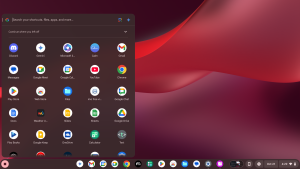
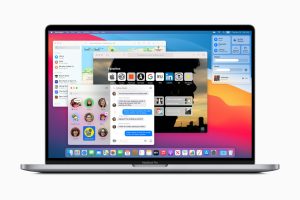
ChromeOS features a minimalist, web-centric user interface designed for simplicity and speed, centered around the Chrome browser. Key components include a desktop for background images, a bottom shelf (taskbar) for app pinning and management, a launcher for browsing apps, and a quick settings panel in the bottom-right corner for system controls.
Key Elements of the ChromeOS UI:
- Shelf (Taskbar): Located at the bottom, it provides quick access to frequently used apps and shows running apps.
- App Launcher: Opened via the circle icon, it lists installed apps similar to Android, allowing users to search for apps, files, or online content.
- Quick Settings/Status Area: Located in the bottom-right corner, this panel allows users to manage Wi-Fi, Bluetooth, volume, brightness, notifications, and power options.
- Window Management: Users can snap windows to the side, maximize, or use multiple windows for improved productivity.
- Files App: A centralized location for accessing local and Google Drive files.
Key Principles:
- Minimalism: The interface avoids clutter to help users focus.
- Cloud-First: It relies on web apps and cloud storage, minimizing the need for complex file management.
- Security: Features like automatic updates and sandboxing ensure that each tab/app runs in its own environment.
- Accessibility: Built-in features like screen readers, magnifiers, and automatic page translation help make the experience accessible to all users.
ChromeOS offers extensive built-in accessibility features to support users with visual, motor, or cognitive impairments. Key tools include the ChromeVox screen reader, Select-to-Speak, dictation (voice typing), on-screen keyboards, screen magnification, high contrast mode, and Switch Access for navigation. These settings are easily managed via the system menu in the bottom-right corner.
Visual Impairments:
- ChromeVox: A built-in screen reader that provides spoken feedback for visually impaired users.
- Screen Magnifier: Allows users to zoom in on content, with options for full-screen or docked magnification.
- Select-to-Speak: Reads selected text on the screen aloud, helpful for users with dyslexia or low vision.
- High Contrast Mode & Color: Enhances visibility with high-contrast,, a Large Mouse Cursor, and cursor highlighting (color-changing circles).
Motor & Dexterity Impairments:
- Dictation: Enables voice-to-text input across the OS, allowing users to speak instead of typing.
- On-screen Keyboard: A virtual keyboard for users who cannot use a physical one.
- Switch Access: Allows control of the Chromebook using external switches or keyboards to navigate the screen.
- Autoclick & Tap Dragging: Automatically clicks when the mouse stops moving, designed for those with limited dexterity.
- Sticky Keys: Allows keyboard shortcuts to be pressed one key at a time rather than simultaneously.
Hearing Impairments:
- Live Caption: Automatically generates captions for media, including audio and videos, in real-time.
- Mono Audio: Combines stereo channels to play the same sound through both speakers, ideal for those with hearing loss in one ear.
Cognitive & Learning Differences:
- Reading Mode: Simplifies web pages, removing distractions like images and videos, with text-to-speech functionality.
- Focus Mode: Reduces distractions to aid concentration.
- Reduced Animations: Minimizes on-screen movement to help with visual processing.
Management and Customization
Accessibility features can be toggled on quickly via the Settings > Accessibility menu, which can also be pinned to the system tray for immediate access. IT administrators can also manage these settings centrally.
These features make Chrome OS particularly popular in education and for remote workers who primarily use web-based tools.
To know more just click the reference link: https://www.google.com/search?q=advantages+of+chrome+os&rlz=1C1CHBD_en-GBIN1169IN1169&oq=Advantages+of+Chrome+OS&gs_lcrp=EgZjaHJvbWUqBwgAEAAYgAQyBwgAEAAYgAQyBwgBEAAYgAQyCAgCEAAYFhgeMggIAxAAGBYYHjIICAQQABgWGB4yCAgFEAAYFhgeMg0IBhAAGIYDGIAEGIoFMg0IBxAAGIYDGIAEGIoFMg0ICBAAGIYDGIAEGIoFMgoICRAAGIAEGKIE0gEIOTc5MWowajeoAgiwAgHxBau_vkRdRFjf&sourceid=chrome&ie=UTF-8