


For cost-effective, high-capacity storage for computers and laptops, External Hard Disk Drives (HDDs) are the most economical option, offering the lowest cost per gigabyte. For a better balance of speed, durability, and cost, External Solid State Drives (SSDs) are recommended, though they are more expensive.
Best Cost-Effective Options (External):
- External Hard Drives (HDDs) – Best for Low Cost/High Capacity:
- Seagate Expansion 2TB/5TB: Highly rated for high-capacity, budget-friendly backups.
- Western Digital (WD) My Passport 2TB/5TB: A popular choice for reliable, portable storage at a low cost per TB.
- Toshiba Canvio Basics 1TB: Excellent option for tight budgets.
- Key Advantage: Offers 500GB to 20TB capacities at very low prices.
- External Solid State Drives (SSDs) – Best for Speed/Portability:
- SanDisk 1TB/2TB Portable SSD: Offers good speed (up to 800-1050MB/s) and ruggedness, making it a “sweet spot” for speed and value.
- Samsung T7/T7 Shield 1TB/2TB: Known for fast, reliable, and durable performance.
- Crucial X9 1TB SSD: Provides good, budget-conscious SSD performance.
- Key Advantage: Faster speeds for file transfers and editing, durable against drops (no moving parts).
Summary of Differences >>
| Feature | External HDD (Budget) | External SSD (Performance) |
|---|---|---|
| Cost | Very Low ($/GB) | Moderate to High ($/GB) |
| Speed | Moderate (120–150 MB/s) | Fast (500–2000 MB/s) |
| Durability | Fragile (Moving Parts) | High (No Moving Parts) |
| Best Use | Massive Backups/Archiving | Daily Use, Editing, Gaming |
Tips for Cost-Effective Storage >>
- Opt for 2TB+ Capacities: The cost per terabyte often drops as the total capacity increases (e.g., 2TB or 5TB models).
- Look for Sales: Brands like Seagate and WD frequently offer sales on portable hard drives (5TB portable models can often be found at a good value).
- USB 3.0/3.2 Gen 1: Ensure the drive supports USB 3.0 or higher for decent transfer speeds, even on a budget.
- Consider Internal Upgrades: If you are comfortable, replacing an internal HDD with a SATA SSD is a cost-effective way to speed up an older laptop.
One of its kind is …
BUFFALO LinkStation 210 2TB 1-Bay NAS Network Attached Storage with HDD
Hard Drives Included NAS Storage That Works as Home Cloud or Network Storage
Device for Home.
*Brand BUFFALO
*Color Black
*Size 2TB (1x2TB)
*Material Metal
*Compatible Devices
About this item >>
Value NAS with RAID for centralized storage and backup for all your devices. Check out the LS 700 for enhanced features, cloud capabilities, macOS 26, and up to 7x faster performance than the LS 200.
Connect the LinkStation to your router and enjoy shared network storage for your devices. The NAS is compatible with Windows and macOS*, and Buffalo’s US-based support is on-hand 24/7 for installation walkthroughs.
*Only for macOS 15 (Sequoia) and earlier. For macOS 26, check out our LS 700 series.
Subscription-Free Personal Cloud – Store, back up, and manage all your videos, music, and photos and access them anytime without paying any monthly fees.
Storage Purpose-Built for Data Security – A NAS designed to keep your data safe, the LS200 features a closed system to reduce vulnerabilities from 3rd party apps and SSL encryption for secure file transfers.
Back Up Multiple Computers & Devices – NAS Navigator management utility and PC backup software included. NAS Navigator 2 for macOS 15 and earlier. You can set up automated backups of data on your computers. Securely Share Files With Family & Friends – Configure individual access restrictions for folders to ensure your data remains private while securely share storage space or files with others. 2TB capacity – 1 Drive bay, HDD included. Secure and Centralize Your Data – Use the NAS as a central storage and backup location. No more searching through different external drives or cloud accounts.
Which is the cheapest storage device?
The cheapest storage devices based on cost per gigabyte are generally External Hard Disk Drives (HDDs) for high capacity or USB flash drives for small, portable storage. For bulk, long-term storage, 3.5-inch desktop HDDs offer the best value, whereas, for low-capacity, temporary files, USB 2.0/3.0 drives are the most cost-effective option, often available under ₹1,000.
Cheapest Storage Solutions:
- External Hard Disk Drives (HDD): Offer the lowest cost per TB (e.g., WD My Passport, Seagate Expansion), making them ideal for backing up large amounts of data.
- USB Flash Drives: Excellent for quick transfers and low-cost, portable storage (e.g., SanDisk Cruzer Blade 64GB), usually priced very low.
- Recertified Hard Drives: Buying “recertified” or refurbished drives from companies like Server Part Deals can offer reliable, high-capacity storage at significantly lower prices than new, according to this YouTube video : https://www.youtube.com/watch?v=ZkOBLBKgdf0
- Cloud Storage: For very small, immediate, or flexible needs, cloud services offer affordable, scalable, and highly available storage options.
Comparison & Considerations:
- HDD vs. SSD: HDDs ($0.03–0.06/GB) are much cheaper than SSDs ($0.08–0.10/GB).
- Speed vs. Cost: While USB flash drives are cheap, they are generally slower than external SSDs, which cost more.
- Capacity: For 1TB or higher, external HDDs are the most economical, as noted on www.amazon.in.
Which storage type is the cheapest per GB?
Hands down HDD for the lowest cost per GB/TB and write/read speed. As for write speeds, as bad as SMR HDD write speeds can be, it’s still faster than writing to optical disc at ~10/MB/s for a DVD written at 8X, the fastest speed to ensure reliable writes.
What is the best type of storage for a laptop?
Solid-state drives (SSDs) are the most common storage drives today. SSDs are smaller and faster than hard disk drives (HDDs). SSDs are noiseless and allow PCs to be thinner and more lightweight. Hard disk drives (HDDs) are more common in older devices.
Who is better, HDD or SSD?
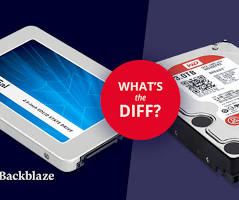
Yes, Solid State Drives (SSDs) are generally much better than Hard Disk Drives (HDDs) for performance, offering significantly faster boot times, instant application loading, and superior durability due to no moving parts. However, HDDs are better for budget-friendly, large-volume, long-term data storage.
Key Advantages of SSDs
- Speed: SSDs are much faster for data access and transfer speeds.
- Durability: Lacking moving parts, they are more resistant to physical shock.
- Noise & Power: SSDs are silent and consume less power, enhancing battery life.
- Size: They are smaller and lighter, allowing for thinner devices.
Key Advantages of HDDs
- Cost: HDDs provide a much lower cost per gigabyte.
- Capacity: They are more cost-effective for high-capacity storage (multiple terabytes).
Which Should You Choose?
- SSD: Essential for your operating system (Windows/macOS), apps, and modern gaming.
- HDD: Ideal for storing large files like movies, photos, and backups.
For most users, a hybrid approach—an SSD for the operating system and an HDD for large file storage—provides the best balance of speed and capacity.
How long will 1TB of storage last?
Documents and photos: If you mainly store small files such as documents, emails and photos, then 1TB of storage space may last for several years, or even longer, depending on how you use it. Music: If you store music files, 1TB can hold thousands of songs, depending on the sound quality and file format.
Which storage device is free of cost?
Get more done with OneDrive free cloud storage. Store your files and photos with OneDrive free cloud storage and access them from any device, anywhere.
What is the lifespan of an SSD?
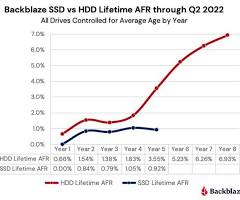
SSDs typically last for 5 to 10 years or roughly 256 TBW (Terabytes Written) to several petabytes, depending on usage. Their lifespan is determined by write cycles, with normal daily office use (10–35 GB) unlikely to exhaust the drive within a 5-year warranty period. Performance and health can be monitored using SMART tools.
Key Factors Influencing SSD Lifespan:
- TBW (Terabytes Written): This represents the total amount of data that can be written to an SSD before it is likely to fail. Higher capacity drives generally have higher TBW ratings and longer lifespans.
- DWPD (Drive Writes Per Day): This measures how many times you can write the entire capacity of the SSD every day over its warranty period.
- Memory Type (NAND): 3D NAND technology is more durable than older planar flash. SLC (Single-Level Cell) offers the most write cycles, followed by MLC, TLC, and QLC, which have fewer but are more common in consumer drives.
- Usage Intensity: Heavy workloads, such as constant video editing or running a server, will reduce an SSD’s lifespan faster than light web browsing.
How to Monitor SSD Health:
- S.M.A.R.T. Tools: Software such as Crystal Disk Info or manufacturer-specific tools (e.g., Samsung Magician) can show remaining life, temperature, and overall health percentage.
- Windows Command Prompt: Running
wmic diskdrive get statuscan provide a quick check on the drive’s health.
Tips to Extend SSD Life:
- Avoid Excessive Writing: Do not use SSDs for temporary files if possible.
- Maintain Free Space: Keep at least 10-15% of your SSD’s capacity free for the controller to perform wear leveling efficiently.
- Ensure Good Cooling: Overheating can damage SSD components.
- Avoid Full File Overwrites: Instead of rewriting entire files, try to update only the necessary parts.
Which is better, 512GB or 1TB SSD?
A 1TB SSD is generally superior for most users, offering double the storage capacity for games, media, and applications, often with slightly faster speeds and higher endurance (TBW) than a 512GB model. Choose 512GB for budget-friendly, casual use (office, web), and 1TB for long-term versatility, heavy gaming, or content creation.
512GB SSD vs. 1TB SSD Comparison >>
- Capacity: 512GB provides approximately 476 GiB usable space, whereas 1TB provides about 930 GiB after formatting.
- Performance: Larger capacity drives, such as 1TB, can be slightly faster than their 512GB counterparts.
- Use Cases:
- 512GB: Suitable for students, light users, or administrative tasks, providing enough room for the operating system, daily apps, and moderate file storage.
- 1TB: Ideal for mainstream gamers, professionals, and photographers who need space for numerous applications, high-resolution media, or extensive photo/video projects.
- Cost: While 1TB drives have a higher upfront cost, they often offer better value per gigabyte.
- Longevity: 1TB SSDs usually have a higher Total Bytes Written (TBW) rating, meaning they can endure more data writes over their lifetime.
Which Should You Choose?
- Go with 1TB if you download many games, work with large files (video editing), or plan to use the device for several years without managing storage space.
- Go with 512GB if you primarily use cloud storage, have a strict budget, or use the device exclusively for basic tasks like web browsing and document editing.
What are the three types of storage devices?
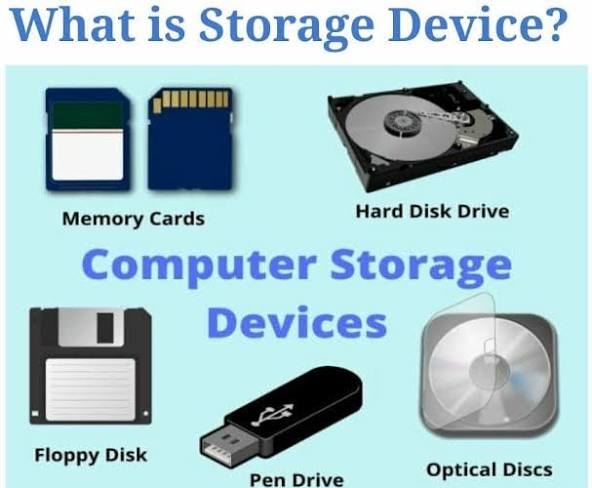
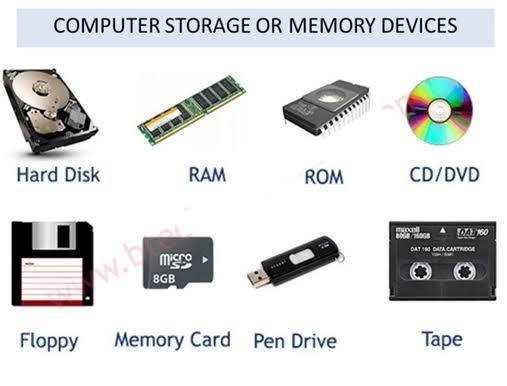
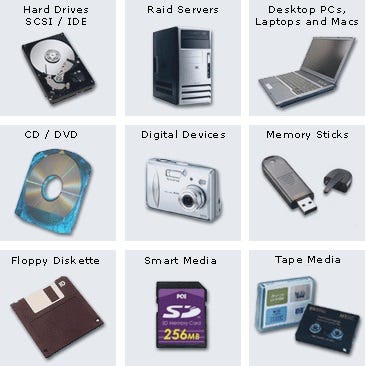
Three primary types of storage devices are magnetic storage (hard disk drives), solid-state storage (SSDs, USB drives), and optical storage (CDs, DVDs, Blu-ray). These devices store data, including files and applications, either inside a computer or externally for portability and backup, retaining information even when power is turned off.
- Magnetic Storage Devices (HDDs): These use magnetic fields to store data on spinning disks. They offer high capacity at a lower cost, making them ideal for desktop storage and large backups.
- Solid-State Storage Devices (SSDs): Using flash memory, these have no moving parts, making them faster, quieter, and more durable than HDDs. Examples include SSDs, USB flash drives, and memory cards.
- Optical Storage Devices: These use lasers to read and write data on disks, such as CDs, DVDs, and Blu-ray discs, often used for media playback, software installation, and archiving data.
Other categories, according to Wikipedia, can also include cloud storage (internet-based) and older technologies like magnetic tape.